Category: Gadgets & Toys

An early webcam TV appearance

In October 1999, I was interviewed by Leo Laporte on ZDTV's 'Call for Help' programme. Yes, this is just another interview about the Trojan Room Coffee Pot, but it's interesting to me for several reasons.

Firstly because, even though it's nearly 20 years ago, I've only just seen it! They kindly sent me a VHS tape of the episode at the time, but (no doubt with good intentions) they encoded it with a rather unusual 50Hz variety of NTSC, and I've never been able to play it. It was only last week that, before throwing it out, I went to the trouble of tracking down somebody who was able to tell me that, yes, indeed, there was actually something on the tape...

Secondly, it was quite a challenge to do the recording. They sent me a camera in advance, and I had a slightly older PC which didn't have the brand new USB ports that were just starting to appear, so I had to dismantle it, install an ISA card, and then repartition my hard disk and install Windows 95, because neither the Linux nor the Windows NT operating systems I had on there were supported by 3Com's software.

But chiefly, it's a nice nostalgic snapshot of tech life not too long ago. The rest of the episode provides helpful hints like: you're probably used to installing hardware in your machine before inserting the CDROM or floppy with the drivers, but with USB it's a good idea to install the drivers first. Files you download over your modem may be compressed and you'll need a thing called WinZip to see what's inside them. And Chris Breen (later an editor at MacWorld), comes on to explain that if you're trying to play DVDs on your computer and they keep skipping, it may be because you're connected to a network that does something called DHCP. The PC can't do that and play back smoothly at the same time, so it may be worth disabling DHCP before you start watching. Oh, and there's also a section about how, if you have a laptop, you may find it a pain to be tethered to your modem, but there are some wireless networking options becoming available, and the one that looks most promising for the future is this thing called 802.11...

The clip I've uploaded shows the interview from the studio in California, with me in Cambridge, and we're joined by Don Lekei from Canada a bit later. It's hard now to remember just how rare it was at the time to see people on TV live from remote locations. That normally needed satellite linkups, or very costly kit attached to extremely expensive international ISDN calls. For Don and I to talk casually from the comfort of our own homes on opposite sides of the world was enough to get the hosts of a tech show pretty excited. You'll note that we both use telephones as well, though, because there wasn't any suitable audio channel...

Anyway, Leo is now the head of the substantial TWiT netcasting network, so I guess networked video worked out well for him too :-)
Eyes in the back of my head

Just before Christmas, Tilly (my spaniel) and I went to the Dordogne and back in our campervan. I made a video about it, which, while it may be of interest only to travel vlog and 'van life' enthusiasts, does have a bit of novelty value, because I filmed it on a spherical (360-degree) camera.

This means that after you've watched it, you can go back and watch it again from a completely different angle and see what was happening behind you!

I'll put the link here, rather than embedding it, because this is something you want to watch on the YouTube site. Or, better still, in the YouTube app on your tablet, or phone, or VR headset...

You can find the video here.

If I had had more time, I would have made it shorter :-)

This was really just an experiment for me, and I learned a great deal about the challenges and opportunities of filming and editing this particular medium, which I may write about in due course.

A well-rounded view

Over lunch yesterday, my friend Richard was expanding my limited knowledge of spherical cameras: cameras which can take an all-round image - or even video - of the world; an immersive view which you can then explore in a VR headset, or by holding up your phone and moving it around, or (suboptimally) in a regular browser window by dragging around with your mouse, StreetView-style.

Richard's done a nice blog post about this, from which I'm shamelessly cribbing! Thanks, Richard!

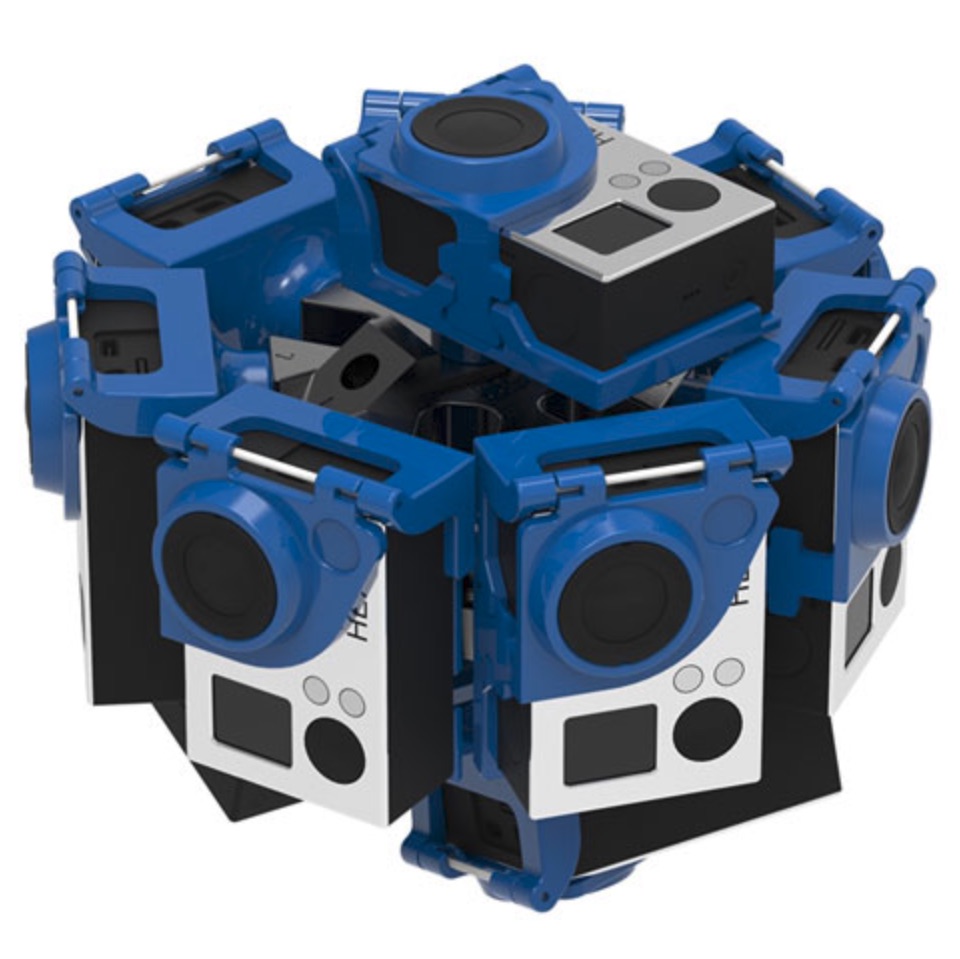
The normal way to get high-resolution all-round footage is to use a special rig like this one:

These are actually not that expensive... assuming that you already have ten GoPro cameras lying around ready to go in them. If not... it's a different story.

But there are now more compact and affordable options if you don't mind sacrificing some resolution - things like the Ricoh Theta V. For more information about how it works, Richard pointed me at this great video:

Now, we all know that you can get interesting feedback effects when, say, standing in a lift or changing room with mirrors on opposite walls, or by pointing live cameras at their own output.

What happens when you explore the same ideas in a spherical world? Cool things:

Oh, and if you're like me, the next question is, "Can you do this kind of thing with live footage?" And the answer is yes. Here's... ahem... a recording... to prove it...

A final thought.

In the old days, some comedy shows would emphasise that they were "recorded in front of a live audience", so that you knew that the laugh track wasn't canned. Soon, we'll be able to recreate the effect of a live audience so realistically that it won't be sufficient to persuade you that the recording was actually done in front of real people. Even if you have multiple spherical recordings.

So here's a challenge to ponder over the weekend: How could you prove that a YouTube video of an event was originally a real event, shown to real people?

Future Imperfect

As someone who has watched a few Star Trek episodes recently... well, OK, I admit it... a few dozen Star Trek episodes recently, I must express my concern about the quality of hardware engineers employed in the construction of Federation starships.

Why is it, that after several generations, they still build ships with computer consoles that explode at the slightest hint of enemy phaser fire? Perhaps Samsung had a watertight long-term supplier contract and the Federation couldn't get out of it, but still, it does seem like a serious design flaw, especially on the bridge.

If you search the web, of course, you'll find that I'm not the only person to have noticed this, indeed, there are many long discussions which might provide an answer if you're a bit more interested than I was. If you're considering a career as a Starfleet officer, however, it might be worth your while doing some more extensive research.

Perhaps the consoles are more robust than they might appear, though. Others have pointed out that a surprising number of them do seem to keep working after having exploded.

So the basic underlying manufacturing is sound. Like so many computer consoles, though, more work is needed to improve the user experience.

Hot at the top

This is a lovely idea - the Mixergy hot water tank.

A standard UK hot water tank heats the water from the bottom, either using electricity or water heated by a gas boiler. This means that when you want to heat up your water, you need to heat the whole thing.

Mixergy, instead, put the heating at the top, so you can warm up smaller amounts of water, and then make intelligent use of pumps to circulate it as required if you need to heat larger amounts of water. Not only is this more energy-efficient, but it means you get hot water again more quickly after you've used it up.

There's a more detailed discussion on a recent episode of Fully Charged.

SeaBubbles

Fancy some fast, green, silent, smooth, aquatic transport? Me too. So the approach taken by SeaBubbles is really attractive.

They're making electric hydrofoils which, once you get above about 6 knots, rise up and lose 60% of their drag.

They're about the same size as a car, and the battery has the same capacity as my BMW i3. This would give you enough range, on their figures, to get you across the English Channel.

Here's some nice footage of their tests on the Seine; they're keen to promote them as water taxis. As they point out, many waterways have speed restrictions that wouldn't allow you to get the most out of your SeaBubble...

They haven't announced pricing yet, but I fear they'd be well beyond my reach, especially since I'd also need to buy a cottage by the side of a fjord to appreciate it fully.

But I hope I get a chance to ride in one!

Zooming in the rain

On Wednesdays, there's an interesting group of catering vans that collect at the far end of the West Cambridge campus, and I like to go there for lunch.

But it's a bit of a distance, and the weather today was bad, so it was important to find the most appropriate method of transportation...

Adding custom ringtones to your iPhone using iTunes

In case you're Googling for it, or in case I forget how to do it...

If you search online, you can can find various articles about how to take an MP3 or AAC audio file and make a .M4R-format file which an iOS device can then use as a ringtone. I've had a bit of Gilbert & Sullivan as mine for years, and have probably infuriated and/or amused those around me in equal measure when my phone starts announcing that I am the Captain of the Pinafore...

I lost this, though, in a recent wipe and re-install of my phone, after which I discovered that iTunes no longer makes it at all obvious how to put these custom ringtones onto your device. It's easy if you buy them on the iTunes store, of course, but otherwise no amount of dragging and dropping would get my old favourites into iTunes or onto my phone.

But it turns out that there is still a way, and it's documented some way down on this Apple page. As a quick summary:

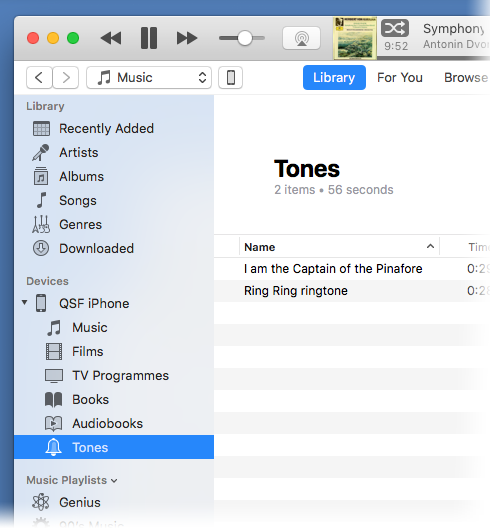
  • Connect your phone to your computer, so it appears in the sidebar of your iTunes
  • Go and find your ringtone(s) in the Finder or Windows Explorer and COPY them.
  • Select the 'Tones' section of your device in iTunes and PASTE.

This works fine for me in iTunes 12.7 - no dragging and dropping needed. You should then see your ringtones, and be able to choose them in Settings > Sounds on the iPhone.

A possible solution to slow or unresponsive Hue lights

They used to say that there are two 'internet of things' systems that 'just work' out of the box: the Sonos sound system, and Philips Hue lighting. I'm fortunate enough to own both of them, and I would add the Honeywell Evohome heating system (though one of my friends has had a few complications with an unusually large installation).

When we moved house recently, though, my previously-faultless Hue system seemed to become a bit less reliable. Admittedly, we have rather more bulbs now (33 and counting), but that's nowhere close to the limit it can handle. Our bulbs are always powered, so the cunning mesh networking should make sure that nothing is out of signal range. Yet sometimes lights weren't obeying their commands promptly, switch presses needed to be repeated, and things generally seemed, well, a bit sluggish. I was beginning to think it might be time to wipe the configuration off my bridge and start again from scratch. It probably does have a lot of accumulated junk on there...

And then I did a little research and realised something that I should have thought about earlier.

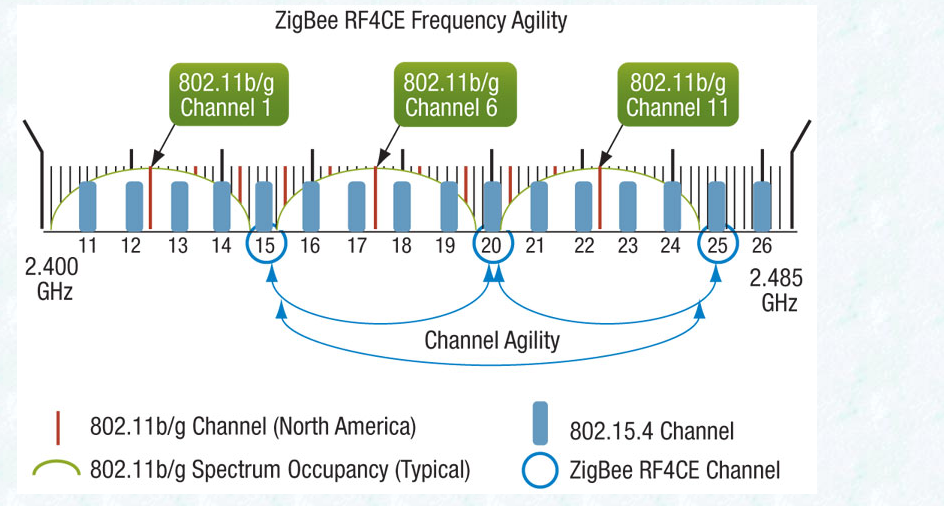
Zigbee (the wireless networking used by Hue and a variety of other systems) runs at approx 2.4Ghz: the same frequency range as Wifi. Like Wifi, it has a number of channels, and if your wifi router and your Zigbee hub have overlapping channels, they can interfere with each other. I found this useful diagram online (apologies for not knowing its creator):

'802.11b/g', in case you don't know it, is part of the technical standard popularly known as Wifi, so the green labels show Wifi channels, and the blue bars show Zigbee.

The number and availability of channels vary depending on your country, but they will be similar to the above. Although Wifi has about a dozen channels, the nearby ones overlap substantially, so most installations only use 1, 6 or 11: if both you and your neighbour are using Wifi channel 1, you won't make much difference by switching to 2 or 3; you need to go at least as far as 6. Go much further than 6, and you'll start interfering with your other neighbour on channel 11. Usually, these days, wifi routers are pretty good at picking their channel by finding the least congested space, though you may need to reboot them from time to time to encourage them to do so.

Anyway, one thing that had changed in my new house was the Wifi. And when I looked, sure enough, my Wifi router was on channel 11 and my Hue hub was on a Zigbee channel that was rather too close for comfort. By going into the Hue app and looking at the settings for my Bridge, I was able to change the Zigbee channel to number 15, and things are going a lot more swimmingly now!

Hope that might help someone else...

Update: As Nigel points out in the comments, if you have 5GHz wifi available, moving as many of your devices as possible to that will also help!