Category: Gadgets & Toys

Behind bars?

Overheard the other day: "How come your phone gets 5 bars here and mine only gets 3? We're on the same network!" It made me smile: as far as I know, there is no standard for the number of bars displayed vs. signal strength, even across different phones, let alone across different manufacturers. Perhaps there should be.

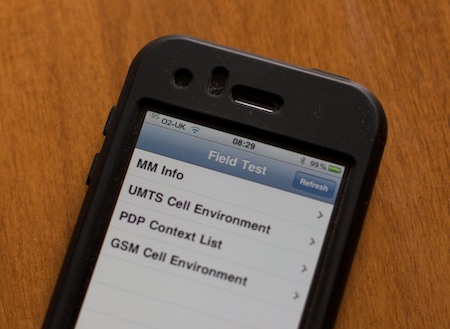
iPhone users who want to know a bit more can dial *3001#12345#* on the numeric keypad and press Call, which will bring up Field Test Mode. The bars in the top left will be replaced with a signal strength in dBm - a negative number where the less negative it is, the stronger the signal - and there's a whole menu of other diagnostic information whose merest operational parameters I am not worthy to calculate.

iPhone Field Test mode

Incidentally, there are some discussion threads out there talking about signal strength problems that people have seen after upgrading their iPhone, or after installing the 3.0 software, or if you hold the phone the wrong way... While I'm sure some people do have real problems, I've just come from a Nokia E71, which was also an excellent phone, and about which people have exactly the same discussions.

I, for one, am loving my iPhone 3GS...

How to use Google calendars on your iPhone/iPod Touch

A key benefit of the new iPhone/iPod software release is the OS's ability to handle the CalDAV protocol natively. Translated into something approaching normal English, this means that you can view and create entries in your Google calendars using the iPhone calendar app. (In the past you could view them if they were synced from your Mac, but not update them on the hoof).

I've written before about why this is important and how to use CalDAV on your Mac. How do you do it on the iPhone?

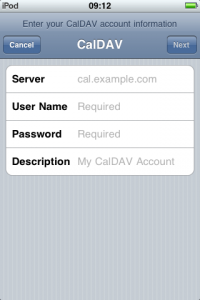
If you have one Google calendar, it's pretty straightforward. You go to Settings > Mail,Contacts,Calendars > Add Account... and then click the 'Other' link. Near the bottom you'll see 'Add CalDAV account', which will take you here:
caldav

You can just enter 'www.google.com' as the server, and your Google username and password. You should get a little message at the top of the screen saying that your account is verified, and that's it. Your Google calendar should now be one of the ones available in the Calendar app!

OK, that was the easy bit, and for most people, the only bit. But Status-Q readers are not 'most people'. Oh no.

So, suppose you have a shared calendar? A company or family one, perhaps?

This is a bit more complex, but not much. This calendar will have a CalDAV URL which might look more like this: https://www.google.com/calendar/dav/vqqbsgcpabpgjvgpajk9ea16c1@group. calendar.google.com/user and you need to get that into the settings on your iPhone.

But how do you find this URL? If you're already using CalDAV in iCal on a Mac, it's pretty straightforward - you can go to iCal Preferences > Accounts and look under the Server Settings tab for the Account URL.

If not, then go to Google calendars on the web, and find the calendar settings for the calendar you want. (You can get to the settings from the 'My calendars' box on the left - see the little pull-down menu beside the calendar's name.) Near the bottom of the Calendar Details page in the Calendar Address section, you'll see the calendar ID listed. (Calendar ID: vqqbsgcpabpgjvgpajk9ea16c1@group.calendar.google.com)

Astute readers will have realised that this is the core of the URL that you need. Just put https://www.google.com/calendar/dav/ before it and /user after it to get the URL you need.

OK, so you've got a long URL that you really don't want to have to type into your iPhone. But you've now got cut and paste on the phone. So you can email it to yourself, and copy it.

Now go and add another CalDAV account on the phone as before. This time, when entering the Server address, paste this long URL. You won't see it - the screen reverts to www.google.com, but it will have taken it in, and you can enter your login details as normal. Later you can check the URL by going back to the account and clicking the Advanced Settings page, but this shortcut worked for me.

And now you should have both your main Google calendar and your shared calendars available and editable from your phone or iPod, and you can switch off that pesky old Exchange server :-)

Homecoming

homecoming

I know you'll be pretty amazed by my artistic ability, as demonstrated here. When your pulse has stopped racing, you can look at this little Quicktime movie to see how I did it.

This was my first experiment with the Brushes app for the iPhone/iTouch, which would be little more than a toy if it weren't for the sort of things real artists are managing to do with it. This guy's getting a lot of attention.

Thanks to John for the initial link.

Water Music

I love swimming but have to admit that, when done as an exercise, it's not always the most riveting occupation. So my latest gadget is an attempt to remedy that.

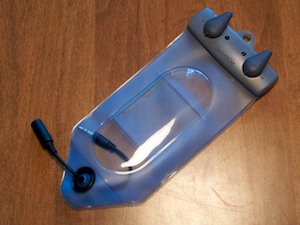
Aquapac

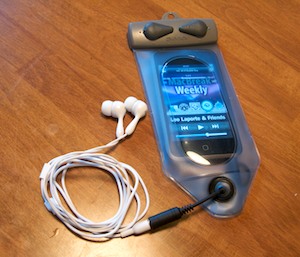
It's an Aquapac case for an MP3 player, and when combined with an iPod and some waterproof headphones...

iPod in Aquapac

...it should allow me to listen to lectures from Cornell while ploughing up and down, thus enriching both body and mind. Prepare for some energetic and terribly erudite posts after the weekend!

(If you don't notice any change, I probably listened to Britney Spears instead.)

A GPS treat for Mac users

For nearly a year now, I've been geotagging all my photos (marking them with latitude and longitude) with the help of a GPS logger that I hang from my belt. The upshot is that in Aperture, for example, I can right click on any photo, and select 'Show on map'. Google maps pops up with a pushpin at the location of the photo.

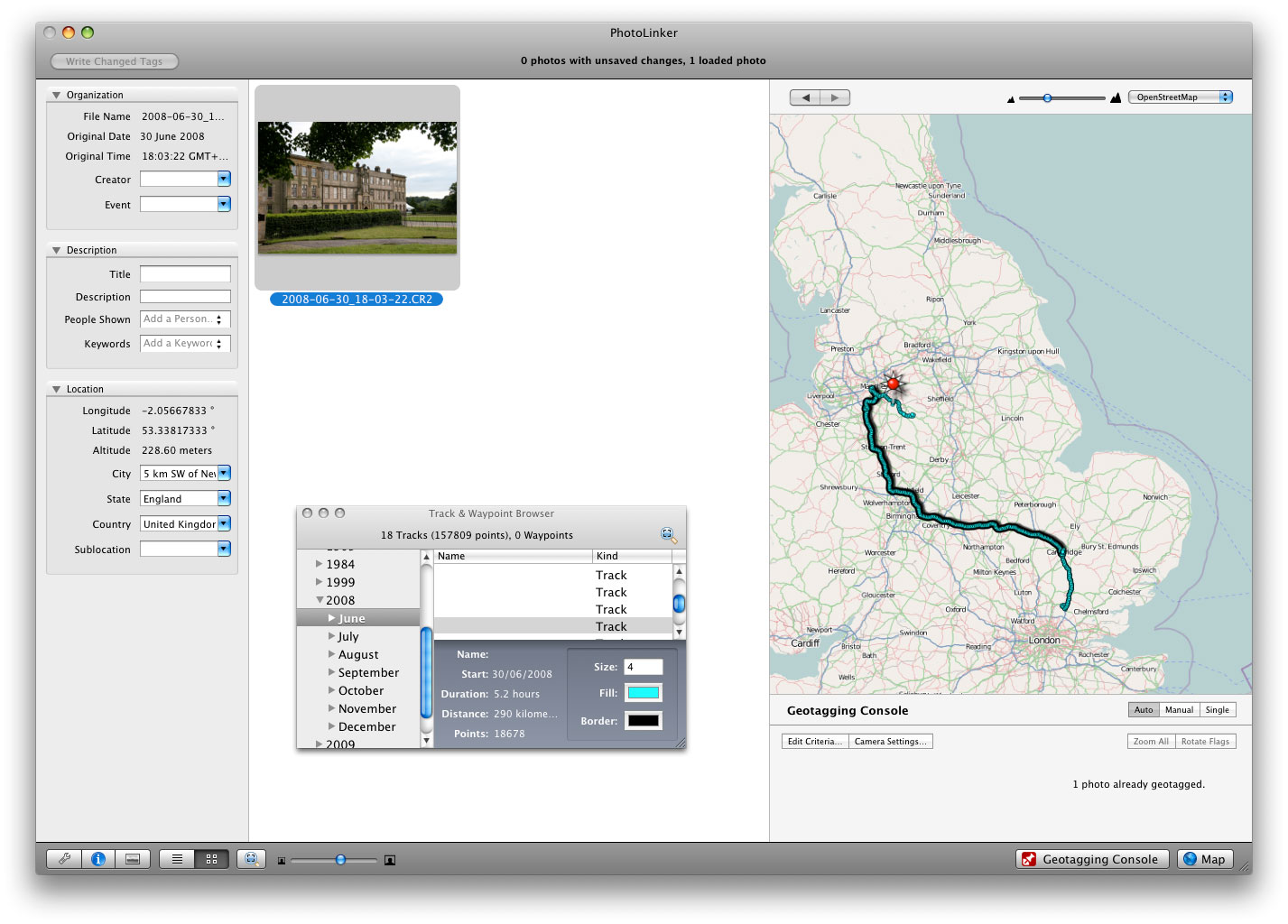
My camera and the GPS logger don't actually talk to each other. The photos and the recorded GPS positions are linked up using their timestamps after I've copied them onto my laptop. I've been using Jeffrey Early's GPSPhotoLinker utility to do this, which has worked nicely, but this last week he released a new, renamed, and much-enhanced version: PhotoLinker 2.0.

Photolinker

This lets you browse your GPS tracks with a map interface, geotag your photos with a great deal of control, and is definitely the best Mac utility that I've tried for this stuff. I've been beta-testing it for a little while, but it's great that it's now public. Even if you don't do the photo-geotagging thing, it's a nice way to view GPS tracks. You can select from a variety of background maps.

Have a look at the introductory screencast to get a feel for what's involved.

Recommended.

For those interested, in my case, PhotoLinker is just part of my 'workflow'. The AMOD device records NMEA logs as plain text files, and appears as a USB flash drive when I plug it in. Chronosync fires up automatically and copies any new logs onto my hard disk, then runs a Makefile which uses GPSBabel to do some filtering and create GPX versions of the tracks. GPX has now pretty much supplanted NMEA as the lingua franca of GPS logs and PhotoLinker can read GPX files directly. I use Aperture to manage my photos, but I've told it not to keep them in its library: it manages them in an external directory, which also means that apps like PhotoLinker can access them easily.

iTouch/iPhone hint of the day

If you're entering a URL in the iPhone/iPod Touch's web browser, there's a handy '.com' key to save typing. It can be used to enter other domains too.

But when you're entering email addresses, there's no such shortcut. Except that there is. It's hidden away. Just press and hold the '.' key.

(If you like this hint, you might also like this one)

Mac Mini 9

My Mac Book Pro has a new baby brother. It's a Dell Mini 9 on which, thanks to the instructions here, I was able to install Mac OS X.

I already had a properly-licensed copy of the OS, in so far as any operation like this could be properly-licensed. I ordered the Dell with 2G RAM, an improved webcam, a larger (16GB) SSD and a bluetooth module. Total cost: £277. Including VAT. And shipping. Oh, and a nice carrying case.

As soon as you pick the device up, you can tell from the construction that it's not an Apple. But my first solid-state 'Mac' runs the OS really quite nicely. I had a vague idea that Apple software was only licensed to run on Apple-badged products, so I fixed that too:

However, there was one downside to the bargain special price I got from Dell. After ordering, I discovered that some varieties of this machine, such as those purchased from PCWorld or from Vodafone, have a 3G modem and a slot for a SIM. This doesn't have it, and it would have been really quite nice. But then I might not have got some of the other upgrades, and since everything else, including a 3G connection via Bluetooth to my phone, seems to work fine, I'm really very happy.

LagerLamp

My friend Phil Endecott has released his latest app for the iPhone, which makes your beverage the envy of all other nearby beverages. How? By making it glow.

You need a rather dark environment, but it's great fun. LagerLamp is available from iTunes for 59p. Which, when you think about it, wouldn't buy you very much beer these days.

Use at your own risk!

A fire may have been Kindled

As an experiment, I've just read a whole Kindle book on my iPod Touch. And, rather unexpectedly, I went straight back and ordered another.

It's not that the reading experience is the best in the world... though it's not at all bad. The benefit I hadn't predicted came from my always having my iPod in my pocket, and therefore always having good reading matter in my pocket. Even in the loo.

It's a library that's smaller than any single book I own.

And it's a book that always opens up at the place where you left off. Useful if you just want to read a few sentences while waiting for the train.

And it's a book that you don't need to have the light on to read. Useful if you wake up earlier than your partner.

All these factors meant that I probably got through the book rather faster on my iTouch than I would have on a proper Kindle.

Or on paper.

Not what I expected.

Don't knock Nokia...

My ageing Nokia E61 was, in many ways, an excellent phone - it was my TomTom, my Blackberry, a pretty good web browser, but it was starting to have occasional hiccups, and 'out of memory errors' once I started syncing over 1000 contacts to it from my Mac. It was time for a replacement, and an iPhone would be the natural thing for someone who loves the iTouch as much as I do, but I'm in the twilight zone at the end of a service contract and to switch suppliers would be expensive at present; besides, I won't be surprised if there's a new iPhone in the summer.

So I opted for a second-hand E71 from eBay, having read rave reviews for it, and I have to say it's a very nice device. It's familiar, being a successor to the E61, and adds a reasonable 3MP camera, a GPS - even, I discovered this morning, an FM radio - all in a much smaller and sexier package.

What many Nokia smartphone users may not know is that Nokia give out some quite interesting bits of software from time to time. Nokia Messaging makes up for the fact that I can't install Blackberry Connect on this device, for example.

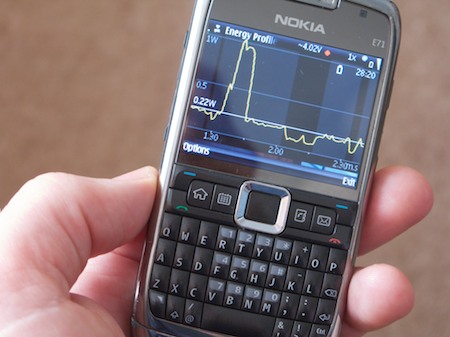
My only real disappointment was with the battery life, which was poor even by 3G smartphone standards. But even there, help was at hand in the form of the Nokia Energy Profiler - a very cool tool which can monitor all sorts of things.

If you leave this running as a background process you can try making adjustments to your configuration to see the effect. The peak in the power consumption shown on the screen was when I turned the camera on, for example.

Through this I discovered that switching off HSPDA - leaving me with 3G but not '3.5G' - would give me a substantial cut in power usage, and hopefully extend my normal battery life beyond a day... we'll see how it goes!

Update: Well, it didn't notably extend my battery life. But what did make a difference was switching the 'Packet data connection' setting from 'When available' to 'When needed'. Now I get a whole day and a bit more.