Category: Apple

Macs and stuff

Disk Risk

Mmm. I seem to have had a lot of hard drive failures recently - Seagate drives, mostly, though, to be fair, the majority of my drives are Seagate just because my favourite supplier happens to like them, so I would expect see more failures there. The last one, though, is just 18 months old and has started making ominous clicking noises. They don't make 'em like they used to. Stuff I've read online tends to suggest that it's hard to assign blame to particular drive manufacturers, but particular models do tend to have rather different failure rates.

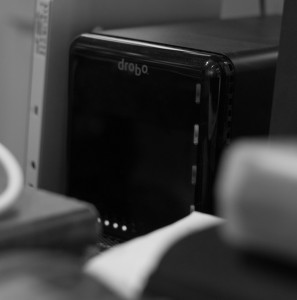
I do, I realise, have rather a lot of hard disks. I have three 4-bay Drobo enclosures, for a start, so that's 12 drives even before I start adding on the miscellaneous backup disks, TV-recording disks, etc. Not to mention the internal ones in all our various machines. There must be 20-25 hard disks around here, and even though manufacturers' specs talk about a <1% annual failure rate, studies tend to suggest that real-world figures are rather higher. One of the biggest studies, done by Google a few years ago, showed failure rates of 1.7% in the first year, rising to over 8% in the third year.

Yes, many of my drives are about that age, so if I really have 25 of them, I guess I should expect one to die every six months or so. Bother.

This suggests to me that money spent on things like my Drobo enclosures is worthwhile, because, though they are pricey, especially once you've filled them up with drives, any single drive failure is unlikely to be catastrophic - as disks die, you just replace them with whatever size is currently in vogue. My main Drobo currently has two 2TB drives, one 1.5TB, and a 1TB. There are those, I know, who have had less positive experiences with some Drobo kit - I found a DroboShare networking add-on to be decidedly wobbly at a past company - but in the simple use case of a Drobo plugged into a computer, I've been very happy and have replaced several drives without ever losing data.

The other thing that the Google study found was a strong correlation between when disks start reporting errors (which they can do using the S.M.A.R.T technology built into modern drives) and a failure soon afterwards. It's worth, therefore, having something that checks the S.M.A.R.T status and lets you know about issues as soon as they are reported, even if the drive is still apparently working OK. On the Mac, Disk Utility can tell you about issues, but only when you go and look, so I use SMARTreporter to give more regular checks.

OK, things are getting better. There is another issue, though.

On the Mac, at least, most external drives are connected by USB or Firewire, and in general S.M.A.R.T information is not read through those interfaces - if you look in Disk Utility, you'll see it's 'Unavailable'. More sophisticated enclosures like the Drobo will check the S.M.A.R.T status themselves and warn you when things look dubious, but your average USB-connected backup drive may give you no such warnings.

So I was interested to discover this kernel driver project which enhances the standard OSX USB and FireWire drivers to make S.M.A.R.T available for a lot more interfaces. (Download v0.5 here). I'll try it on my Media Mac Mini, which has three external drives, and see how it goes...
Remote keyboard and mouse for your RaspberryPi

Warning - technical post ahead...

My shiny new RaspberryPi came through the door this week, and the first thing I noticed was that it was the first computer I'd ever received where the postman didn't need to ring the bell to deliver it.

The next thing I discovered, because it came sooner than expected, was that I was missing some of the key bits needed to play with it. A power supply was no problem - I have a selection of those from old phones and things, and I found a USB-to-micro-USB cable. Nor was a network connection tricky - I have about as many ethernet switches as I have rooms in the house.

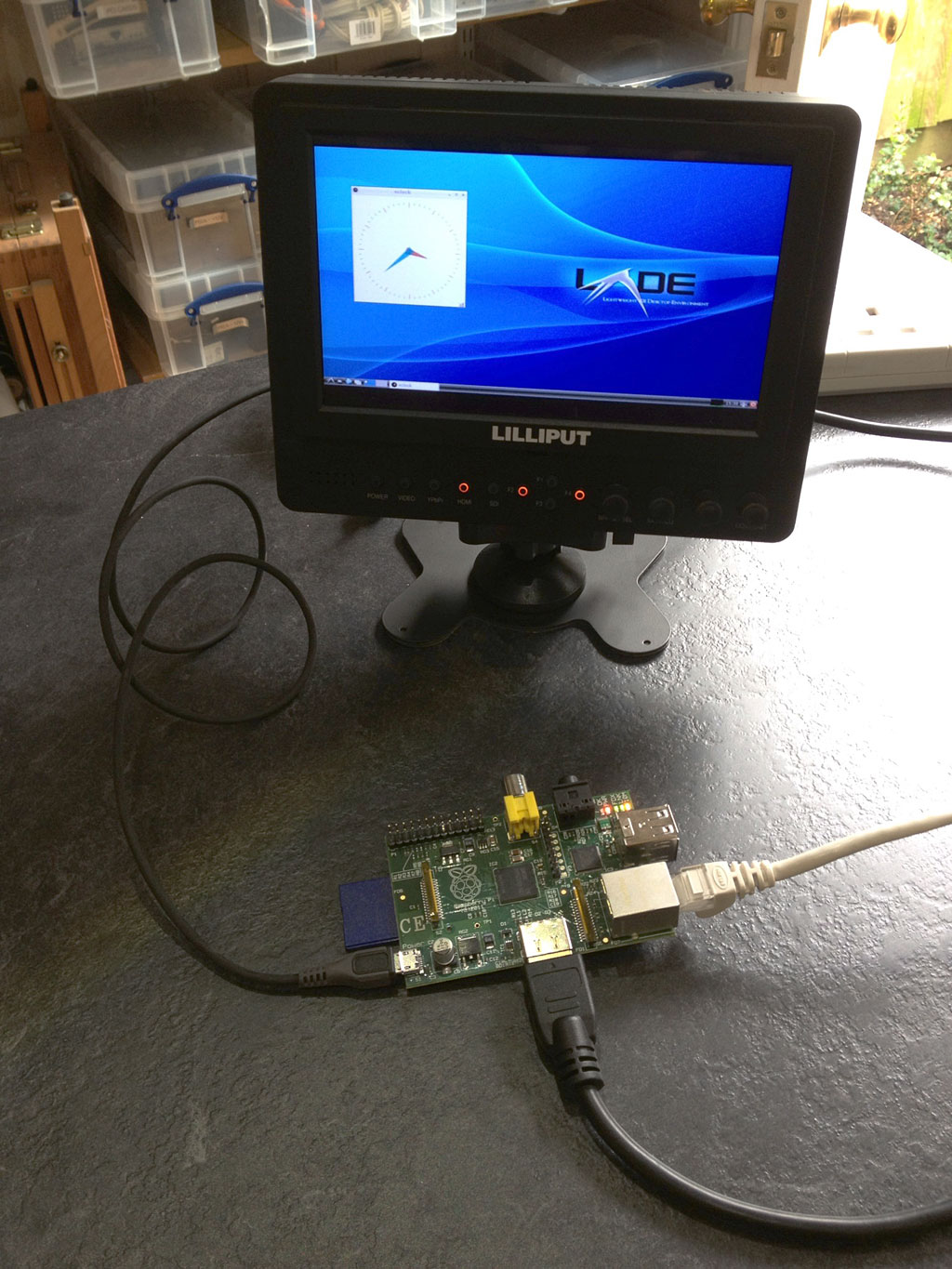
A monitor was a bit more challenging - I have lots of them about, but not with HDMI inputs, and I didn't have an HDMI-DVI adaptor. But then I remembered that I do have an HDMI monitor - a little 7" Lilliput - which has proved to be handy on all sorts of occasions.

The next hiccup was an SD card. You need a 2GB or larger one on which to load an image of the standard Debian operating system. I had one of those, or at least I thought I did. But it turned out that my no-name generic 2GB card was in fact something like 1.999GB, so the image didn't quite fit. And a truncated filesystem is not the best place to start. But once replaced with a Kingston one - thanks, Richard - all was well.

Now, what about a keyboard and mouse?

Well, a keyboard wasn't a problem, but it didn't seem to like my mouse. Actually, I think the combined power consumption probably just exceeded the capabilities of my old Blackberry power supply, which only delivers 0.5A.

If you're just doing text-console stuff, then this isn't an issue, because it's easy to log into it over the network from another machine. It prints its IP address just above the login prompt, so you can connect to it using SSH, if you're on a real computer, or using PuTTY if you're on Windows.

But suppose you'd like to play with the graphical interface, even though you don't have a spare keyboard and mouse handy?

Well, fortunately, the Pi uses X Windows, and one of the cunning things about X is that it's a networked display system, so you can run programs on one machine and display them on another. You can also send keyboard and mouse events from one machine to another, so you can get your desktop machine to send mouse movements and key presses from there. On another Linux box, you can run x2x. On a Mac, there's Digital Flapjack's osx2x (If that link is dead, see the note at the end of the post).

These both have the effect of allowing you to move your mouse pointer off the side of the screen and onto your RaspberryPi. If you have a Windows machine, I don't think there's a direct equivalent. (Anyone?) So you may need to set up something like Synergy, which should also work fine, but is a different procedure from that listed below. The following requires you to make some changes to the configurations on your RaspberryPi, but not to install any new software on it.

Now, obviously, allowing other machines to interfere with your display over the network is something you normally don't want to happen! So most machines running X have various permission controls in place, and the RaspberryPi is no exception. I'm assuming here that you're on a network behind a firewall/router and you can be a bit more relaxed about this for the purposes of experimentation, so we're going to turn most of them off.

Running startx

Firstly, when you log in to the Pi, you're normally at the command prompt, and you fire up the graphical environment by typing startx. Only a user logged in at the console is allowed to do that. If you'd like to be able to start it up when you're logged in through an ssh connection, you need to edit the file /etc/X11/Xwrapper.config, e.g. using:

sudo nano /etc/X11/Xwrapper.config

and change the line that says:

allowed_users=console

to say:

 allowed_users=anybody

Then you can type startx when you're logged in remotely. Or startx &, if you'd like it to run in the background and give you your console back.

Allowing network connections

Secondly, the Pi isn't normally listening for X events coming over the network, just from the local machine. You can fix that by editing /etc/X11/xinit/xserverrc and finding the line that says:

exec /usr/bin/X -nolisten tcp "$@"

Take out the '-nolisten tcp' bit, so it says

exec /usr/bin/X "$@" 

Now it's a networked display system.

Choosing who's allowed to connect

There are various complicated, sophisticated and secure ways of enabling only very specific users or machines to connect. If you want to use those, then you need to go away and read about xauth.

I'm going to assume that on your home network you're happy for anyone who can contact your Pi to send it stuff, so we'll use the simplest case where we allow everything. You need to run the 'xhost +' command, and you need to do it from within the X environment once it has started up.

The easiest way to do this is to create a script which is run as part of the X startup process: create a new file called, say:

/etc/X11/Xsession.d/80allow_all_connections

It only needs to contain one line:

/usr/bin/xhost +

Now, when the graphical environment starts up, it will allow X connections across the network from any machine behind your firewall. This lets other computers send keyboard and mouse events, but also do much more. The clock in the photo above, for example, is displayed on my Pi, but actually running on my Mac... however, that's a different story.

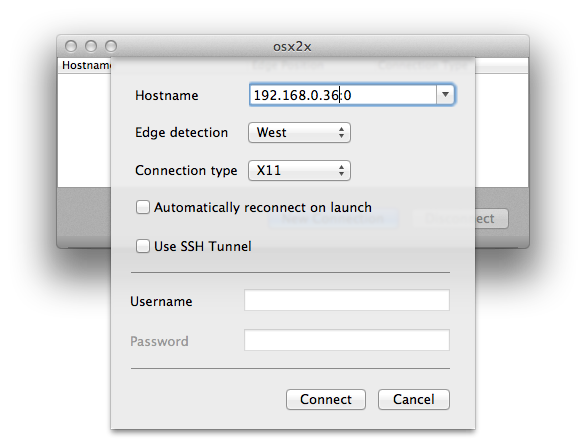
For now, you need to configure x2x, osx2x, or whatever is sending the events to send them to ip_address:0, where ip_address is the address of your Pi. I'm using osx2x, and so I create the connection using the following:

Once that's done, I can just move the mouse off the west (left-hand) side of my screen and it starts moving the pointer on the RaspberryPi. Keyboard events follow the pointer. (I had to click the mouse once initially to get the connection to wake up.)

Very handy, and it saves on desk space, too!

Update: Michael's no longer actively maintaining binaries for osx2x, and the older ones you find around may not work on recent versions of OS X. So I've compiled a binary for Lion(10.7) and later, which you can find in a ZIP file here. Michael's source code is on Github, and my fork, from which this is built, is here.

Reach for the Skypes

I love Skype - it's one of the most-used utilities on my Mac, and a vital business tool.

There are some who don't understand this, chiefly because they think Skype is about making cheap phone calls. Of course, it's very good at that too: I dread to think how much I might have clocked up in phone bills on my last holiday if I hadn't had Skype and the hotel wifi network. It's also the easiest way I know to set up conference calls.

But mine is configured so that when I double-click on a name, it pops up a chat window, not an audio connection. Though, I admit, the first thing I type is often 'Are you free for a quick call?' But that's so much more polite and... well, British... than simply bursting a ringing phone into someone's day without so much as a 'by your leave'.

At other times, the chat window is all I want. I can drop quick text messages in there, like 'Can you remind me of the login for this URL?', and it's generally quicker and less hassle for everyone involved than any other way of transferring that information.

The real power comes when you're combining the two - a conversation and a chat window. If you've ever tried dictating a URL to someone so that you can peruse a web page together while talking on the phone, you'll appreciate the power of a cut, paste and click to keep things moving along. And, gosh, I haven't started talking about video calls, about screen-sharing, about file transfer... And the fact that, if you're willing to pay a few pence, you can send text messages from it, which is so much easier than typing on a phone keyboard.

Anyway, the degree to which you too will discover this brave new world of communicative wonderfulness depends on two things:

  • How many of your friends know your Skype address (so put it in your email signatures)
  • Whether you run it most of the time (so set it to start up when you log in)
Skype first became really important for me when one of my former companies was headquartered in a house with a studio in the garden. Half of the team worked in the house, and half in the shed, so having a quick, lightweight method of communication between the two was important. When we outgrew that, we moved to an open-plan office. Open-plan offices are things that people used to think were a good idea because they hadn't tried them. Then commercial landlords realised that it was a much more convenient way to let out office space, so they told their clients, "Oh yes, everybody's doing this now". They still continue to exist because the people making the property decisions aren't writers or software developers, who need peace, quiet and concentration, punctuated by a modicum of social interaction over caffeine-dispensing equipment, to be really productive. So, in many offices, you have big open spaces filled with people wearing headphones and listening to music loud enough to drown out the distractions of the phone calls around them. They're more isolated than if they were in different rooms. Managers seem to like this arrangement, because when they walk in they see large numbers of people beavering away, and they fail to realise that those people are beavering about two-thirds as efficiently as they might beaver. Factor that into your rent-per-square-foot... Anyway, I digress, but the result was that Skype continued to be important when we were all in one room, not to talk to people at the far end of the garden, but for reaching those who were just a couple of desks away but in a completely different musical genre. If you spend much time sitting in front of a computer, you owe it to yourself to run Skype and get your friends and colleagues doing so too. Yes, there are other systems, but few that run on Windows, Linux, Mac, Android and iOS and give you such a variety of different communication styles. One final tip for Mac users: the current version of Skype, version five-point-something, is generally agreed to be horrible. Well, not horrible, exactly - in fact, I think it looks quite nice - but it does have ideas above its station and wants to take over your entire desktop. Fortunately, this feeling that it's got just a bit too big for its boots is so widespread that the previous version, 2.8, is still available from the Skype website on its own download page a couple of years after its supposed replacement was rolled out. Grab a copy and make a backup, in case it goes away...

Some recent iOS favourites

A few of my favourite iOS apps at present:

iThoughts HD

I've always had mixed feelings about mind-maps. They're a great way to capture thoughts and to brainstorm, but a terrible way to communicate with others. The chief responsibility of somebody writing a paper or giving a talk, it seems to me, is to turn such a personal 2D 'splat' of ideas into a logically-ordered serial presentation that can be followed by others with different mental processes, and not just to serve up the splat in its unprocessed form.

Still, I do use them for my own notes, and a paper and pen has always been my medium of choice. I've tried several highly-regarded pieces of desktop software, but keyboards and mice just don't seem right for doing this. iThoughts on the iPad is the first environment that feels pretty natural, especially if you use it with a stylus.

Instacast

I listen to lots of podcasts, every day, while shaving, driving, walking the dog. I always used the facilities built into the iPhone music player and iTunes, which aren't bad, so I had never really thought about using a separate app for it. And then I tried Instacast and was an Instaconvert.

Scanner Pro

If you have a recent iPhone with a good camera, then Scanner Pro is a really useful thing to have in your pocket. In essence it's a photo app designed for capturing documents, or parts of documents, and it makes it easy (a) to crop and de-warp the images so as to get something closer to a proper scan and (b) to capture more than one 'page' as a single document and then (c) to email that as a PDF to someone (or upload it to various services). While you'd never confuse the results with the output of a proper scanner, there are times when you might be browsing in a library or perusing a magazine and you don't happen to have a flat-bed scanner in your pocket...

The dictionaries

OK, here's where you might need to start spending some real money... but I've definitely found it worthwhile when travelling to have the Collins language dictionaries in my pocket. I've now bought the expensive versions of the German-English, French-English and Italian-English ones and, even though they're amongst the most costly apps on my phone, have never regretted it. They cost about the same as a hardback equivalent, but are a lot easier to carry around and I find, surprisingly, that I can look things up more quickly in them than on paper.

Another wonderful treat is to have the Shorter OED on my phone, something which in dead-tree form is hard even to lift off my bookshelf! (The current edition comes in two large hardbacks of around 2000 pages each.) It's fabulous for all those times when someone at the restaurant tables asks, "What is the origin of the word 'poppycock'?". Sadly, the iOS app has been discontinued, so if you haven't already got it, you're out of luck, but there are a lot of lesser-but-much-cheaper options available, including Chambers.

Yes, you can often find good stuff on web, but not as quickly, especially if the restaurant table is in a basement. And if it's in a foreign basement, then looking stuff up online may be rather expensive too.

Vous êtes hereux de me voir, ou vous avez une bibliothèque dans votre poche?...

Update 2012–08–14 Since this post, I’ve switched from using Instacast to Downcast. Its interface is a little crowded, on the iPhone at least, but it has a couple of nice features over Instacast.

The first is the ability to skip forward and backwards by a certain number of seconds: useful to skip ads, or to rewind a bit if you were distracted and lost the thread. Instacast has this, but it’s always been very unreliable. With Downcast it’s still a bit hit-and-miss - the buttons often seem to do nothing, or perhaps they’re just too small and so easy to miss - but my success rate is higher.

The second is the ability to sync various things between devices - which podcasts I’m subscribed to, which episodes I’ve already heard, and to some degree, how far through them I am. So I can listen at home on the iPad’s superior speaker and then carry on using my iPhone when I’m on the move.

Very nice.

The key to saving keystrokes

For many years I've been a fan of TextExpander on the Mac, a utility which converts a short sequence of keystrokes into a much longer one. For example, most of my email messages end with

All the best,
Quentin

which appears when I type 'atb' and hit space. There are many much more complex things you can do with TextExpander, which is good, because it's a little pricey for a small utility, but in the end I realised that 35 bucks wasn't too much for something I use dozens of times every single day.

But typing efficiency is even more important when you have a sub-optimal keyboard, like the iPhone or iPad's. One of my favourite tips is that you can get an apostrophe or quote mark by pressing the comma or full-stop key briefly and sliding upwards; there's no need to switch into punctuation mode. (I wrote about this before once, but I think it must have been on Twitter or Facebook, which means I can't find it now. Note to self: always keep useful stuff on blog.)

Anyway, one of the recent iOS updates added a very handy but somewhat hidden keystroke-expansion feature, and I've realised that I'm using that all the time too.

Under Settings > General > Keyboard you can create shortcuts, which will let you do something similar to my 'All the best' trick, and can be very handy if you have a silly long name like mine: 'qqsf' expands into 'Quentin Stafford-Fraser', complete with capitals and punctuation.

But the thing I've found most useful is to have abbreviations for my main email addresses, since an increasing number of sites use them as login usernames. I find I'm always having to type, say, 'quentin@mycompany.com' on my little iPhone keyboard, and it was a real pain until I replaced it with 'qmc' and a space.

One small note: if you use it this particular way, there are some sites that get confused if you leave the space on the end. So I actually tend to type 'qmc<space><backspace>', but that's still a great deal easier than the whole address.

Build your house upon the rock

In the last week I've walked and cycled many miles around Florence, on the ubiquitous slate-grey stone with which its streets are paved. They cut nice textures into it to make sure it doesn't become too slippery in adverse weather conditions.

But I have walked on this stone before, in many cities around the world, and in a finely-polished form, because it is used as the flooring material in Apple's retail stores.

Walter Isaacson's biography of Steve Jobs describes how this came about:

In 1985, as he was being ousted from his first tour at Apple, he had visited Italy and been impressed by the gray stone of Florence's sidewalks. In 2002, when he came to the conclusion that the light wood floors in the stores were beginning to look somewhat pedestrian -- a concern that it's hard to imagine bedeviling someone like Microsoft CEO Steve Ballmer -- Jobs wanted to use that stone instead. Some of his colleagues pushed to replicate the color and texture using concrete, which would have been ten times cheaper, but Jobs insisted that it had to be authentic. The gray-blue Pietra Serena sandstone, which has a fine-grained texture, comes from a family-owned quarry, Il Casone, in Firenzuola outside of Florence. "We select only 3% of what comes out of the mountain, because it has to have the right shading and veining and purity," said Johnson. "Steve felt very strongly that we had to get the color right and it had to be a material with high integrity." So designers in Florence picked out just the right quarried stone, oversaw cutting it into the proper tiles, and made sure each tile was marked with a sticker to ensure that it was laid out next to its companion tiles. "Knowing that it's the same stone that Florence uses for its sidewalks assures you that it can stand the test of time," said Johnson.

Multi-hop networking

Venice, as you may know, is made up of about 100 islands connected by lots of little bridges. That's roughly how the little network here in my Venice hotel room works, too.

The hotel charges for a wifi connection - only a one-off charge, but it is per-machine, so I only paid for my Macbook to be connected. With recent versions of OS X you can easily create a PAN (a 'Personal Area Network') using Bluetooth, so Rose's laptop and my iPad could then get access by using my Mac as a Bluetooth < -> Wifi gateway. All very cool.

However, I could not get my iPhone to connect that way. I don't know whether it should work or not - the general expectation is that you're more likely to use your phone to provide connectivity for your laptop than the other way around! But I wanted a connection for the phone because I needed to download maps and other reference materials to have in my pocket as we explored, and I didn't want to pay roaming data charges.

And then I realised that, just as my laptop was sharing its wifi connectivity to Rose's laptop using a Bluetooth PAN, so her machine could then share that connectivity as a wifi network again! And, hey presto, my phone had a network, so I can now download maps to my heart's content!

What else would one be doing in Venice, after all?...

:-)

Photostream2Folder

Apple users, especially those with iPhones or iPads, will know about the Photo Stream cloud service that makes your recent photos available on all your devices. You can take a photo on your phone, open up your laptop, and find it already available in iPhoto or Aperture.

But what if you don't use iPhoto or Aperture? (I've recently switched to Lightroom and found myself missing this feature). Or you want to do something automatically with every photo you take, like emailing them to Granny?

Well, then you want Laurent Crivello's Photostream2Folder utility, which polls your stream periodically and simply puts the recent photos in a folder on your disk. Very handy.

A vision of the future? Yes, indeed.

In 1994, Knight Ridder's Information Design Lab produced a video which was their vision of the future of newspapers: The Tablet Newspaper. Have a look at around 2:20, and see if it looks at all familiar!

(I guess my nearest equivalent in gadget prediction is shown here.)